English
 Hindi (हिंदी)
 Gujarati (ગુજરાતી)
 Telugu (తెలుగు)
 Marathi (मराठी)
 Bengali (বাঙ্গালী)
 Turkish
 Dutch
 Italiano
 Russian
 Romaian
 Portuguese (Brazil)
 Greek
 Arabic
 French
 Deutsch
 Spanish
 Portuguese

North America Dyslexia Treatments Market Report Covering Emerging Trends Through 2034
Health |
2026-08-25 09:51:02
Accounting data is most useful when it can be reviewed, organized, and analyzed easily. The challenge is that financial information is often stored in formats designed for software systems rather than for everyday users.
One example is the IIF file format.
IIF files are commonly associated with QuickBooks Desktop and can contain accounting information such as transactions, accounts, vendors, customers, items, and other financial records. While the format is useful for exchanging data between compatible systems, it is not always convenient when you need to inspect or analyze the information manually.
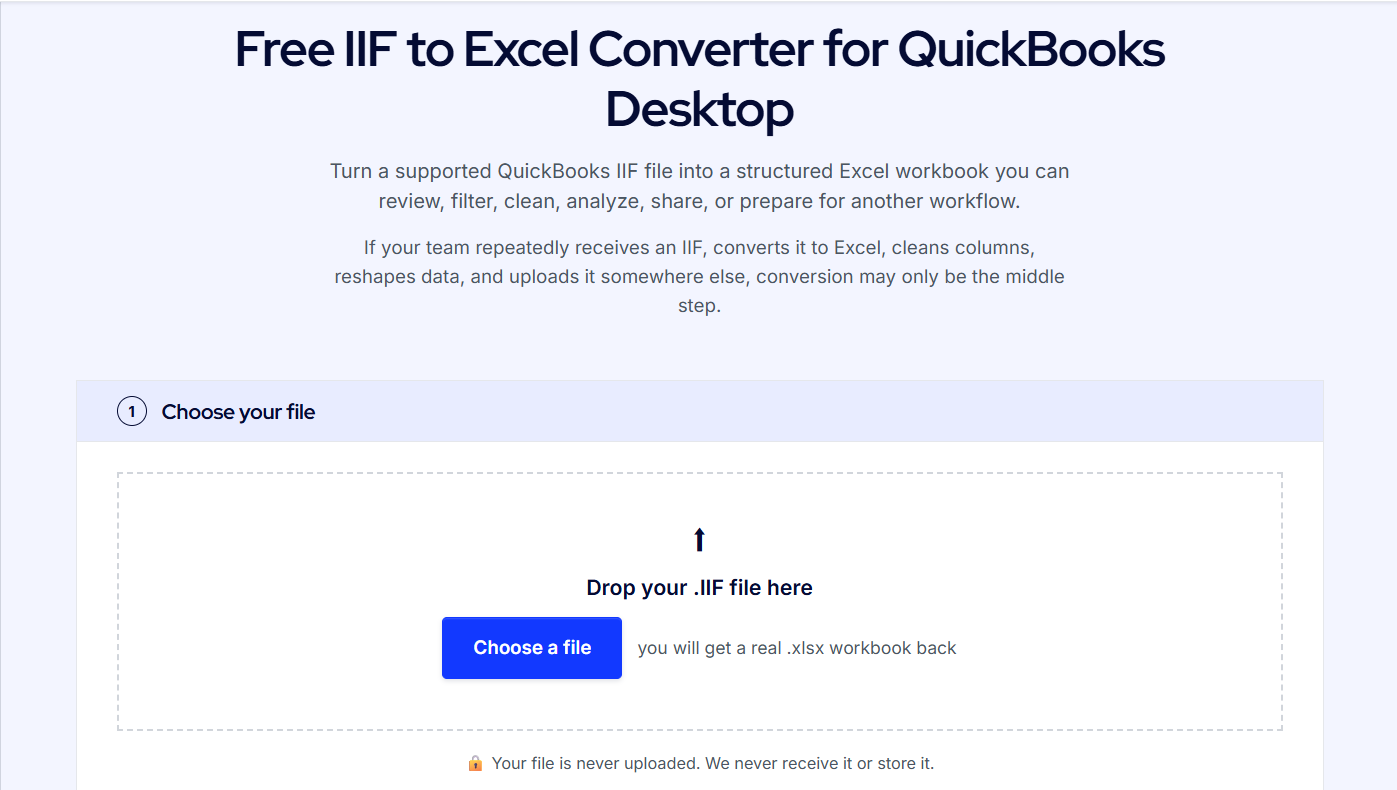
An IIF to Excel Converter helps transform IIF data into an easier-to-use spreadsheet format.
Instead of working with technical file structures, accountants, bookkeepers, and businesses can view the information in rows and columns, apply filters, perform calculations, identify inconsistencies, and prepare records for other accounting workflows.
This guide explains how IIF to Excel conversion works, when it is useful, and what you should check to maintain financial accuracy.
IIF stands for Intuit Interchange Format.
It is a structured text-based file format historically used with QuickBooks Desktop for certain import and export processes.
Depending on how the file was created, an IIF file may contain different types of accounting information, including:
An IIF file organizes this information using specific fields, headers, and record types.
That structure allows compatible accounting software to understand the data, but it can make the file difficult to review manually.
Even though an IIF file may technically be opened in a spreadsheet or text editor, the raw information may not be arranged in a way that is immediately useful.
An IIF to Excel Converter is a tool that reads the records inside an IIF file and restructures them into a spreadsheet-friendly format.
Instead of displaying technical record types and fields, the converter organizes accounting information into columns.
For example, transaction data may appear as:
Date | Transaction Type | Account | Name | Memo | Amount
Customer data could appear as:
Customer Name | Company | Account | Balance | Contact Details
The exact spreadsheet structure depends on the records contained in the original IIF file.
The main goal is to make accounting data easier to review and work with.
There are several situations where converting an IIF file to Excel can simplify accounting work.
Raw IIF files are designed primarily for system-to-system data exchange.
Excel is designed for people to work with data.
Once the IIF information is converted, users can see the accounting records in a familiar format.
This makes it easier to inspect:
For finance teams, this visibility can make troubleshooting and review much faster.
One of the strongest reasons to convert IIF to Excel is the ability to analyze the information.
Excel allows users to sort and filter large datasets quickly.
For example, you could filter transactions to show:
You can also use formulas, pivot tables, and summaries to analyze the converted data.
This makes Excel a useful working format when accounting information needs to be investigated outside the original accounting software.
Accounting databases often contain inconsistencies that build up over time.
These may include:
These issues may be difficult to identify when reviewing records individually.
Once the data is in Excel, patterns become easier to spot.
For example, a vendor could appear as:
Acme Supplies
ACME Supplies
Acme Supplies LLC
These records may represent the same vendor.
A spreadsheet makes it easier to identify and investigate this type of inconsistency before making changes in the accounting system.
The conversion process generally involves several stages.
The converter analyzes the file and identifies its headers, record types, and available fields.
The tool determines which rows represent transactions, accounts, customers, vendors, items, or other records.
The information is mapped into appropriate spreadsheet columns.
For example:
IIF Date Field → Excel Date Column
IIF Account Field → Excel Account Column
IIF Amount Field → Excel Amount Column
The structured records are prepared in an Excel-compatible format.
The converted information should then be reviewed against the source records.
This last step is important because financial data should always be verified after conversion.
Most conversion workflows follow a similar process.
Start by finding the IIF file you want to convert.
Make sure it contains the correct accounting information.
If you have multiple files, check:
Always keep an original copy before processing the file.
Open the converter and choose the IIF file.
The converter analyzes the available accounting records and prepares them for extraction.
The tool processes the IIF file and restructures the information into spreadsheet rows and columns.
Open the converted spreadsheet and review its structure.
You may see separate columns for dates, accounts, transaction types, names, descriptions, and amounts.
Compare a sample of the converted records with the original accounting data.
Do not use the spreadsheet for reporting or migration until you are satisfied that the conversion is accurate.
Several fields deserve close attention.
Make sure the transaction dates remain correct.
Date formats can sometimes be interpreted differently between systems.
Check financial amounts carefully.
Verify that both positive and negative values retain the correct meaning.
Make sure transactions remain associated with the correct accounts.
Check names for missing text, incorrect characters, or formatting problems.
Review transaction notes to ensure important context has not been lost.
Compare the number of records in the converted spreadsheet with the source file where possible.
A large difference may indicate that certain records were not processed.
Converted IIF data can also support reconciliation workflows.
Suppose you have accounting transactions in an IIF file and another dataset containing bank transactions.
By converting the IIF data to Excel, both sets of information can be compared more easily.
You may match transactions using:
Unmatched records can then be investigated separately.
This can help identify:
Businesses sometimes need to move financial information between accounting systems.
Before importing data into a new platform, it can be helpful to inspect the existing records.
An IIF to Excel converter provides visibility into the source data before migration.
A typical workflow may look like:
Export IIF → Convert to Excel → Review Data → Clean Records → Map Fields → Prepare Destination Import
This approach gives the finance team an opportunity to correct problems before they are transferred into the new system.
Excel can also serve as a staging area for accounting cleanup.
After conversion, you may need to:
The goal is not necessarily to edit the original IIF file directly.
Instead, the spreadsheet provides a clearer view of the information and helps users determine what changes may be required.
Sometimes standard accounting reports do not provide the exact combination of data required by the business.
Excel provides more flexibility.
Converted IIF data can be combined with information from:
This allows businesses to build custom financial or operational reports.
For example, transaction data could be combined with location information to compare financial activity across multiple stores.
Not every conversion is completely straightforward.
One IIF file may contain several types of accounting records.
These may need to be organized separately in Excel.
Some transactions contain multiple accounting lines.
The relationship between these lines must be preserved during conversion.
Some source records may not contain values for every field.
These blanks may also appear in Excel.
Customer names, vendor names, and memos may contain characters that require correct text encoding.
Certain information may make sense inside QuickBooks but may require additional explanation when viewed as spreadsheet rows.
This is why context and validation remain important.
IIF files are text-based, so it may sometimes be possible to open them directly in Excel.
However, this does not always provide a clean working spreadsheet.
You may see:
A dedicated IIF to Excel converter can make the file easier to understand by organizing the information into a more practical structure.
Never rely only on the converted spreadsheet.
Keep the original IIF file as a reference.
A good document flow is:
Original IIF → Converted Excel → Reviewed Working Copy
This is particularly important for accounting migrations, audits, financial cleanup, and historical analysis.
If you discover a problem later, the source file can help determine whether the issue occurred before or during conversion.
IIF files may contain confidential financial data.
Before using an online converter, review how uploaded files are handled.
Consider:
Financial information should be treated carefully, especially when working with company or client records.
An IIF to Excel Converter provides a practical way to transform accounting records from a technical interchange format into a spreadsheet that is easier to understand and analyze.
It can help accountants, bookkeepers, finance teams, and businesses review transactions, identify data quality problems, support reconciliation, prepare for migration, and create custom reports.
The biggest benefit is visibility.
Instead of working with a complex IIF structure, users can see the information clearly in rows and columns.
However, conversion should always be followed by validation.
Check dates, accounts, amounts, customers, vendors, descriptions, and record counts before relying on the spreadsheet.
With the right conversion and review process, IIF files can become much easier to manage and far more useful for accounting analysis, reporting, cleanup, and financial data migration.